
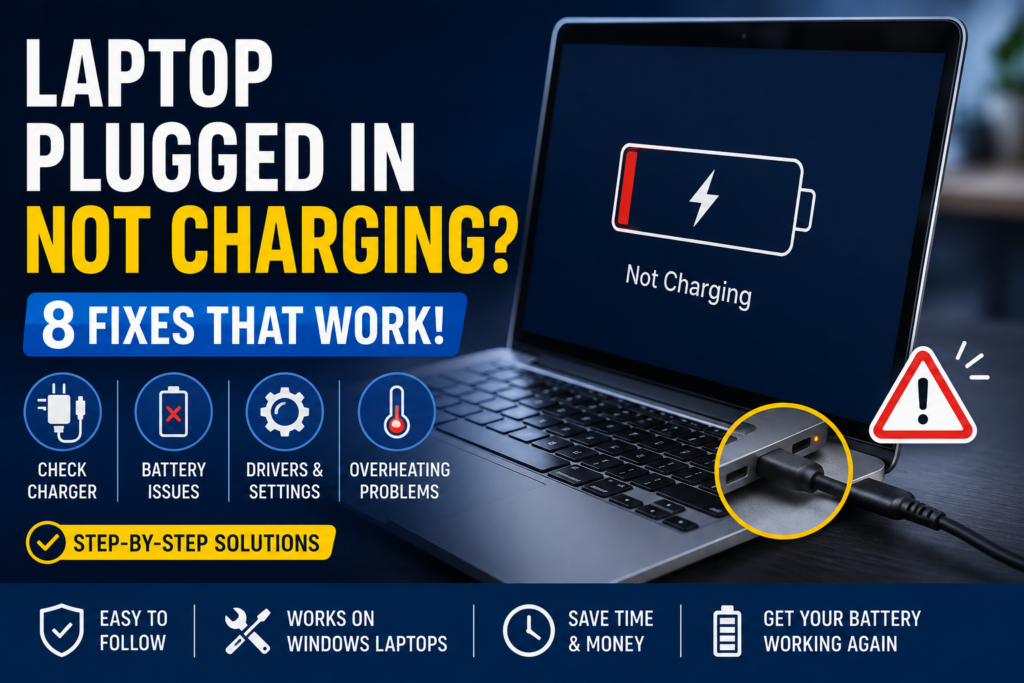
Common Causes of Laptop Plugged In Not Charging
- Faulty power adapter or charging cable
- Damaged charging port
- Battery driver issues
- Overheating
- Outdated BIOS
- Incorrect power settings
- Battery wear and tear
- Hardware failure
Fix 1: Check the Power Adapter and Cable
Steps:
- Inspect the charging cable for damage.
- Ensure the adapter is firmly connected.
- Try a different wall outlet.
- If possible, test with another compatible charger.
Why This Works
A damaged adapter or loose connection is one of the most common causes of charging problems.
Fix 2: Restart Your Laptop
Steps:
- Save your work.
- Shut down the laptop completely.
- Disconnect the charger.
- Wait 30 seconds.
- Reconnect the charger and power on the laptop.
Why This Works
Restarting can clear temporary power management glitches.
Fix 3: Check the Charging Port
Steps:
- Turn off the laptop.
- Inspect the charging port for dust or debris.
- Carefully clean it using compressed air.
- Ensure the charger fits securely.
Why This Works
A loose or dirty charging port can interrupt power delivery.
Fix 4: Reinstall Battery Drivers
Steps:
- Press Windows + X and select Device Manager.
- Expand Batteries.
- Right-click Microsoft ACPI-Compliant Control Method Battery.
- Select Uninstall Device.
- Restart your laptop.
Why This Works
Windows automatically reinstalls the battery driver after reboot.
Fix 5: Allow the Laptop to Cool Down
Steps:
- Shut down the laptop.
- Disconnect the charger.
- Let the device cool for 20–30 minutes.
- Reconnect the charger.
Why This Works
Some laptops stop charging temporarily to prevent overheating damage.
Fix 6: Update the BIOS
Steps:
- Visit your laptop manufacturer’s website.
- Download the latest BIOS update for your model.
- Follow the manufacturer’s installation instructions carefully.
Why This Works
BIOS updates can fix battery detection and charging issues.
Fix 7: Check Battery Health
Steps:
- Open Command Prompt as Administrator.
- Run the following command: powercfg /batteryreport
- Press Enter.
- Open the generated battery report.
- Compare the design capacity and full charge capacity.
Why This Works
The battery report helps determine whether the battery has degraded significantly.
Fix 8: Replace the Battery
Steps:
- Confirm the battery health status.
- Contact the manufacturer or an authorized service center.
- Replace the battery if recommended.
Why This Works
Old batteries eventually lose their ability to hold a charge.
When to Seek Professional Help
You should seek professional assistance if:
- The charging port is physically damaged.
- The battery is swollen.
- The laptop shuts down immediately after unplugging.
- None of the fixes resolve the issue.
Conclusion
If your laptop plugged in not charging issue is preventing you from using your device properly, start with the simple fixes such as checking the charger, restarting the laptop, and reinstalling battery drivers. If the problem persists, check the battery health and consider replacing the battery if necessary.
Following these solutions should help restore normal charging and extend the life of your laptop.
Frequently Asked Questions
Why is my laptop plugged in not charging even with a new charger?
This may be caused by battery driver problems, a faulty charging port, BIOS issues, or a worn-out battery.
Can overheating cause a laptop plugged in not charging issue?
Yes. Many laptops temporarily stop charging when internal temperatures become too high.
How do I know if my laptop battery needs replacement?
Generate a battery report using powercfg /batteryreport and compare the battery capacities. A large difference often indicates battery wear.
Is laptop plugged in not charging a hardware problem?
Not always. Software issues such as corrupted battery drivers can also prevent charging.
Can updating BIOS fix laptop plugged in not charging problems?
Yes. BIOS updates sometimes include fixes for battery and charging-related issues.