
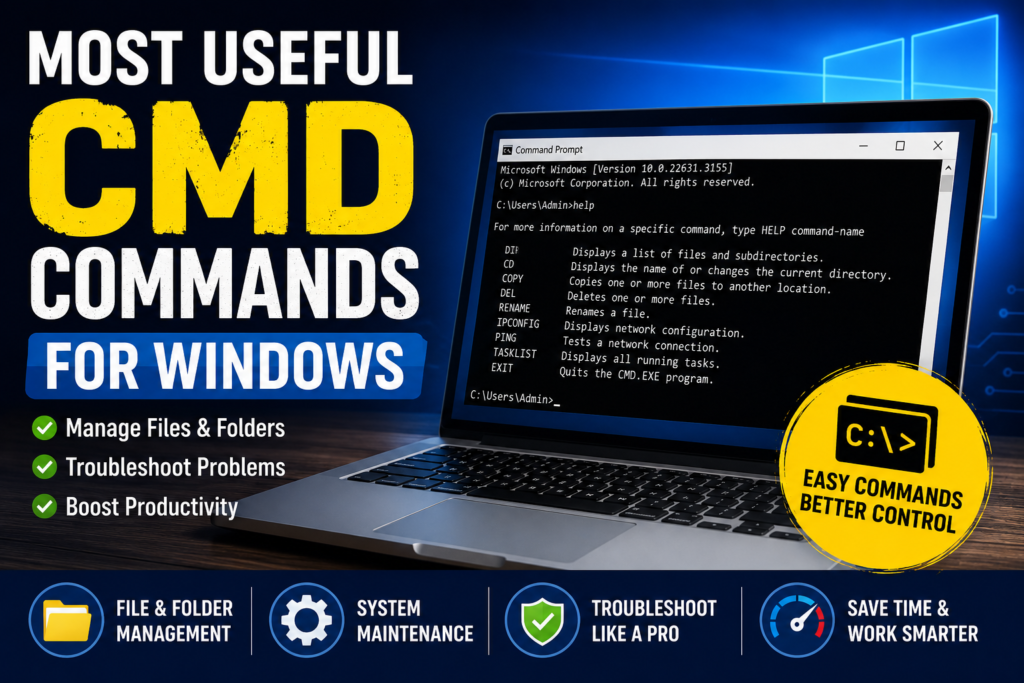
What is CMD?
Command Prompt (CMD) is a built-in command-line tool in Windows that allows users to perform tasks by typing commands instead of using the graphical interface.
CMD can be used to:
- Manage files and folders
- Troubleshoot Windows issues
- Check disk health
- Repair system files
- View system information
- Copy, move, rename, and delete files
How to Open Command Prompt
You can open Command Prompt in several ways:
Method 1
- Press Windows + R.
- Type cmd.
- Press Enter.
Method 2
- Click the Start menu.
- Search for Command Prompt.
- Click Run as Administrator (if required).
Most Useful CMD Commands List
1. help – Display All CMD Commands
Command
help
Description
Displays a list of all available Command Prompt commands.
2. dir – View Files and Folders
Command
dir
Description
Lists all files and folders in the current directory.
Useful Variations
dir /p
Displays one page at a time.
dir /od
Sort files by date.
dir /on
Sort files alphabetically.
dir /ah
Shows hidden files.
dir filename.ext /s
Searches for a file in the current folder and all subfolders.
3. cd – Change Directory
Command
cd foldername
Moves to another folder.
Useful Commands
cd..
Move to the previous folder.
cd\
Move directly to the root directory.
4. Change Drive
To switch between drives:
C:
or
D:
This changes the active drive.
5. md – Create a New Folder
Command
md MyFolder
Creates a new folder named MyFolder.
Example:
md C:\Projects
Creates a folder called Projects in the C drive.
6. tree – Display Folder Structure
Command
tree
Shows the folder structure graphically.
To include files:
tree /f
7. ren – Rename Files or Folders
Command
ren oldname newname
Example
ren report.txt report-old.txt
Renames the file.
8. rd – Remove Directory
Command
rd FolderName
Deletes an empty folder.
Example
rd C:\Projects
9. copy – Copy Files
Copy a file:
copy file1.txt file2.txt
Copy all text files:
copy C:\Windows\*.txt D:\Backup
10. type – Display File Contents
type filename.txt
Displays the contents of a text file without opening Notepad.
11. del – Delete Files
Delete a file:
del filename.txt
Delete all EXE files:
del *.exe
Note: Be careful when using the del command because deleted files cannot be recovered from the Recycle Bin.
12. attrib – Change File Attributes
Display attributes:
attrib
Common Attributes
+R = Read-only
+H = Hidden
+S = System file
+A = Archive
Examples
Hide a file
attrib +h file.txt
Make a file read-only
attrib +r file.txt
Remove hidden attribute
attrib -h file.txt
Remove read-only attribute
attrib -r file.txt
Apply multiple attributes
attrib +r +h +s +a file.txt
13. Wildcard Characters
CMD supports wildcard characters when searching for files.
Asterisk (*)
Represents any number of characters.
Example
dir k*.*
Lists files beginning with K.
Question Mark (?)
Represents exactly one character.
Example
dir ?d*.*
Shows files where the second letter is d.
14. xcopy – Copy Files and Folders
Copy an entire folder including subfolders:
xcopy C:\Data D:\Backup /s /e
Useful switches:
/S – Copies subfolders
/E – Copies empty folders
/P – Prompts before copying each file
15. vol – Display Disk Information
vol
Displays the drive’s volume label and serial number.
16. chkdsk – Check Disk Errors
chkdsk /r
Scans the drive for errors and attempts to repair bad sectors.
17. sfc – Repair Windows System Files
sfc /scannow
Scans and repairs corrupted Windows system files.
18. defrag – Optimize Hard Drives
defrag D:
Reorganizes fragmented files to improve HDD performance.
Note: SSDs do not require traditional defragmentation.
19. cls – Clear the Command Prompt Screen
Command
cls
Description
Clears all previous commands and output from the Command Prompt window.
Example
After executing several commands, type:
cls
This gives you a clean screen without closing CMD.
20. ipconfig – Display Network Configuration
Command
ipconfig
Description
Shows your computer’s IP address, subnet mask, and default gateway.
Useful Variations
Display detailed information:
ipconfig /all
Release the current IP address:
ipconfig /release
Renew the IP address:
ipconfig /renew
Flush DNS cache:
ipconfig /flushdns
21. ping – Test Internet or Network Connectivity
Command
ping google.com
Description
Checks whether your computer can communicate with another computer or website.
Example
ping 8.8.8.8
Useful for troubleshooting internet connection issues.
22. hostname – Display Computer Name
Command
hostname
Description
Displays the name of your Windows computer.
23. systeminfo – View System Information
Command
systeminfo
Description
Displays detailed information about your computer, including:
- Windows version
- Installation date
- Processor
- RAM
- System type
24. tasklist – View Running Processes
Command
tasklist
Description
Lists all currently running programs and background processes.
Example
tasklist
Useful when identifying applications consuming system resources.
25. taskkill – End a Running Process
Command
taskkill /IM notepad.exe /F
Description
Forcefully closes a running application.
Example
Close Notepad:
taskkill /IM notepad.exe /F
Note: Save your work before terminating applications.
26. shutdown – Shut Down or Restart Windows
Shutdown Computer
shutdown /s /t 0
Restart Computer
shutdown /r /t 0
Cancel Shutdown
shutdown /a
Description
Allows you to shut down, restart, or cancel a scheduled shutdown from Command Prompt.
27. echo – Display Messages
Command
echo Hello World
Description
Displays text on the screen.
Example Output
Hello World
Useful when creating batch (.bat) files.
28. exit – Close Command Prompt
Command
exit
Description
Closes the current Command Prompt window.
29. netstat – Display Network Connections
Command
netstat
Description
Shows active network connections and listening ports.
Useful Variation
netstat -an
Displays all active TCP and UDP connections with port numbers.
30. whoami – Display Current User
Command
whoami
Description
Displays the username of the currently logged-in user.
Useful when working on shared computers or servers.
Tips for Using CMD Safely
- Run Command Prompt as Administrator only when necessary.
- Double-check commands before pressing Enter.
- Avoid deleting system files.
- Create backups before making major changes.
- Use commands carefully to prevent accidental data loss.
Conclusion
Learning basic CMD commands can make Windows administration and troubleshooting much easier. Commands such as dir, cd, copy, attrib, chkdsk, and sfc /scannow are useful for everyday tasks and solving common system issues.
Start by practicing these basic commands in Command Prompt, and you’ll become more comfortable managing your Windows PC from the command line.
Frequently Asked Questions
What are CMD commands?
CMD commands are text-based instructions used in Windows Command Prompt to perform system tasks, manage files, and troubleshoot problems.
Is Command Prompt safe to use?
Yes. Command Prompt is safe when used correctly. However, deleting or modifying system files without understanding the command may cause issues.
How do I open Command Prompt as Administrator?
Search for Command Prompt from the Start menu, right-click it, and select Run as Administrator.
What is the difference between CMD and PowerShell?
CMD is the traditional Windows command-line tool, while PowerShell is more advanced and supports scripting and automation.