
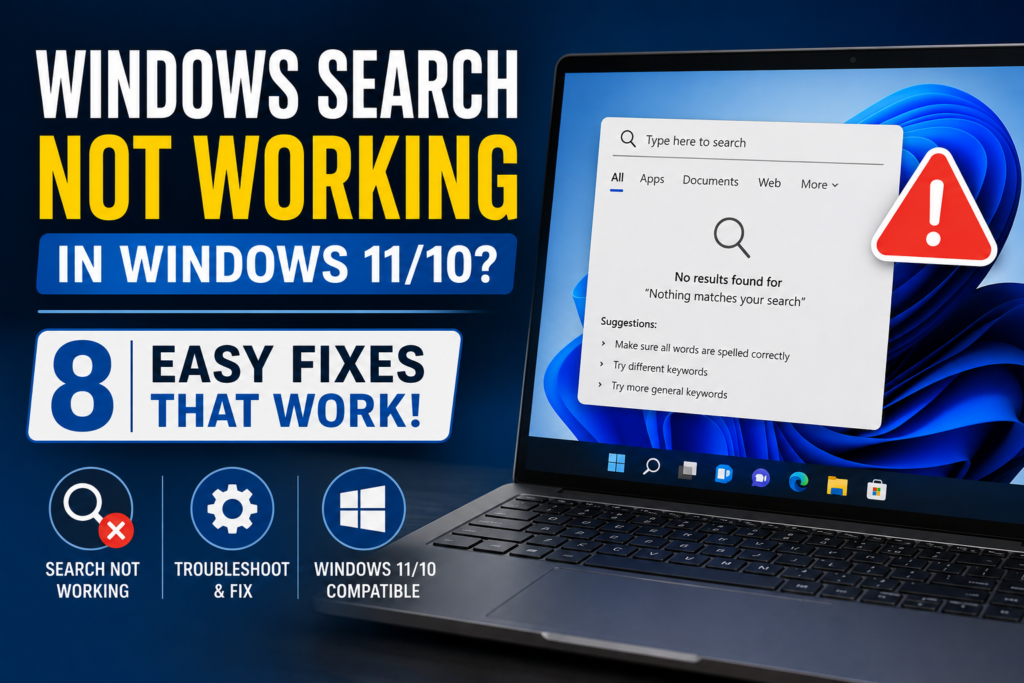
If Windows Search not working is preventing you from finding files, folders, apps, or settings on your PC, you’re not alone. This common issue affects both Windows 11 and Windows 10 users and can be caused by a corrupted search index, disabled search services, damaged system files, or recent Windows updates. Fortunately, there are several proven solutions that can help restore search functionality. In this guide, you’ll learn how to fix Windows Search not working with easy step-by-step methods.
Common Causes of Windows Search Not Working
Before trying the fixes, it’s helpful to understand the possible causes:
- Corrupted search index
- Disabled Windows Search service
- Damaged system files
- Problems with recent
- Windows updates
- Search process errors
- Corrupted user profile
- Insufficient system resources
Fix 1: Restart Your Computer
A simple restart can often resolve temporary issues affecting Windows Search.
Steps:
- Click the Start Menu.
- Select Power.
- Click Restart.
- After the restart, try using Windows Search again.
Why This Works
Restarting reloads Windows services and clears temporary system glitches.
Fix 2: Run the Search and Indexing Troubleshooter
Windows includes a built-in troubleshooter specifically designed for search-related issues.
Steps:
- Open Settings.
- Select System.
- Click Troubleshoot.
- Choose Other Troubleshooters.
- Locate Search and Indexing.
- Click Run.
- Follow the on-screen instructions.
Why This Works
The troubleshooter automatically identifies and fixes common search problems.
Fix 3: Restart the Windows Search Service
The Windows Search service may have stopped running.
Steps:
- Press Windows + R.
- Type: services.msc
- Press Enter.
- Find Windows Search.
- Right-click it and select Restart.
- If the service is disabled, choose Properties and set Startup Type to Automatic.
Why This Works
Restarting the service restores search functionality if the service has become unresponsive.
Fix 4: Rebuild the Search Index
A corrupted search index can prevent search results from appearing.
Steps:
- Open Control Panel.
- Click Indexing Options.
- Select Advanced.
- Under Troubleshooting, click Rebuild.
- Confirm the action.
- Wait for Windows to recreate the search index.
Why This Works
Rebuilding creates a fresh index and removes corrupted search data.
Fix 5: Restart the Search Process
The search process may be frozen or malfunctioning.
Steps:
- Press Ctrl + Shift + Esc to open Task Manager.
- Click the Details tab.
- Find:SearchHost.exe or SearchIndexer.exe
- Select the process.
- Click End Task.
- Windows will automatically restart it.
Why This Works
Restarting the search process can clear temporary issues preventing searches from working.
Fix 6: Repair Corrupted System Files
Damaged Windows system files can affect search functionality.
Steps:
- Open Command Prompt as Administrator.
- Run the following command: sfc /scannow
- Wait for the scan to finish.
- Restart your computer.
Why This Works
The System File Checker scans and repairs corrupted Windows files.
Fix 7: Install Pending Windows Updates
Steps:
- Open Settings.
- Go to Windows Update.
- Click Check for Updates.
- Install available updates.
- Restart your PC.
Why This Works
Microsoft often releases fixes for Windows Search bugs through updates.
Fix 8: Create a New User Account
Sometimes the problem is limited to a corrupted Windows profile.
Steps:
- Open Settings.
- Go to Accounts > Other Users.
- Click Add Account.
- Create a new local account.
- Sign in to the new account.
- Test Windows Search.
Why This Works
If Search works in the new account, the original profile is likely corrupted.
When to Seek Professional Help
Consider professional assistance if:
- Search issues persist after all fixes.
- Multiple Windows features are malfunctioning.
- Severe system corruption is detected.
- Hardware problems are suspected.
Conclusion
Windows Search not working can significantly impact productivity, but the problem is usually easy to fix. Start by running the Search Troubleshooter and restarting the Windows Search service. If the issue persists, rebuild the search index, repair system files, and reset Windows Search.
Following these solutions should restore normal search functionality and help you quickly find files and applications again.
Frequently Asked Questions
Why is Windows Search not showing results?
This is usually caused by a corrupted search index, disabled search service, or damaged system files.
How do I rebuild the Windows Search index?
Open Control Panel, select Indexing Options, click Advanced, and choose Rebuild.
Can Windows updates break Search?
Occasionally, a Windows update may cause search-related issues, but installing newer updates often resolves them.
Will resetting Windows Search delete my files?
No. Resetting Windows Search only restores search settings and indexes.
Is Windows Search important?
Yes. It helps users quickly locate files, programs, settings, and documents across the system.